Quick Answer: Yes, you can run advanced AI models directly on your personal computer! In this LM Studio Guide, we break down how tools like LM Studio and Ollama allow you to run powerful open-source LLMs (like Mistral, DeepSeek, and Llama) offline. By using optimized “GGUF” quantized formats, you can keep your data 100% private and run intelligent AI systems without needing expensive cloud APIs or massive GPU setups.
Inside the Sandbox: My Offline AI Testing
With the explosion of cloud-based tools like ChatGPT, the biggest question in the developer community right now is: Can I run these powerful models entirely on my own hardware?
To build this LM Studio Guide, I bypassed the heavy corporate API setups and directly tested offline inference engines. I deployed various open-source models straight from Hugging Face onto standard consumer hardware to see if they could actually handle coding, translation, and text generation without an internet connection. The results completely change how we look at personal computing.
The Privacy Advantage: Why Go Local?
When you use standard cloud-based AI services, every prompt, codebase, and document you input is sent to a remote corporate server. While major companies invest heavily in security, many developers and enterprises demand absolute data sovereignty.
-
100% Data Privacy: Your data never leaves your local hard drive.
-
Zero API Costs: No monthly subscription fees or token limits. You can experiment endlessly.
-
Total Offline Capability: You can run complex data analysis or content generation even with no internet access.
LM Studio vs Ollama: Which One is For You?
It is important to note that LM Studio and Ollama are not Large Language Models themselves. They are hosting platforms and inference engines designed to manage and execute open-source models.
-
LM Studio (The User-Friendly GUI): This is the ultimate tool for beginners. Its clean, graphical user interface makes searching, downloading, and chatting with models as easy as using a standard messaging app.
-
Ollama (The Developer’s CLI): Highly popular among Linux users and developers, Ollama relies on a command-line interface. It is lightweight, incredibly fast, and perfect for direct API integrations into your custom coding projects.

Hardware Requirements: Do You Need a Massive GPU?
You don’t necessarily need a $2,000 graphics card to run AI locally. The hardware required depends entirely on the size of the model you choose:
-
1B to 3B Parameters: These lightweight models run comfortably on entry-level laptops using just the CPU and standard RAM.
-
7B to 14B Parameters: The sweet spot for local AI. These perform best with a dedicated GPU and decent VRAM, offering a great balance of speed and logic.
-
20B to 70B Parameters: Requires powerful hardware, significant VRAM, and high-end processors.
-
100B+ Parameters: Typically reserved for workstation-grade systems or dedicated enterprise servers.
Understanding GGUF and Quantized Models
If you browse Hugging Face for models like DeepSeek, Qwen, or Mistral, you will notice the raw versions are massively heavy. This is where Quantization comes in.
Quantization compresses the model’s neural weights, drastically reducing its file size and RAM requirements with only a minimal drop in intelligence. Currently, the GGUF format is the gold standard in the local AI community. Any comprehensive LM Studio Guide will recommend downloading GGUF files, as both LM Studio and Ollama are highly optimized to process them efficiently on low-end hardware.
Step-by-Step Setup: Running Your First Model
Setting up your offline AI is easier than installing a modern PC game:
-
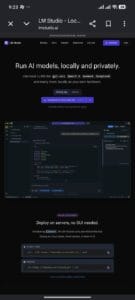
Download & Install: Download the software directly from the LM Studio website. It installs like any standard Windows or Mac application.
-
Search the Hub: Open the built-in model browser and search for an open-source model (e.g., Mistral Instruct or Qwen).
-
Download the GGUF: Select a quantized version that fits your system’s RAM. Remember to keep your laptop plugged in, as downloading and loading multi-gigabyte files is resource-intensive.
-
Start Chatting: Load the model into the local server tab, open the chat interface, and type: “Hi, who are you and how can you help me?” The model will generate a response entirely on your local machine.
The Next Step: Local RAG Frameworks
Running a local chatbot is just the beginning. The true power of these tools unlocks when you combine them with RAG (Retrieval-Augmented Generation). By pointing your local model at a specific folder of your private PDFs, offline databases, or code repositories, you transform a generic text generator into a highly secure, personalized AI assistant that knows your exact workflows.
Monetization Setup: Scaling Your AI Workflows
If you are using local models for rapid content generation, coding, or data structuring, eventually you will want to push those assets live to the web. Running high-converting automated landing pages requires premium, uninterrupted server uptime.
To host your web tools, AI portfolios, and content funnels seamlessly, you can grab top-tier web servers at a massive discount. Use my direct link to Get Hostinger at a Discount and lock in an exclusive 20% savings on premium cloud hosting setups optimized for speed.
Inside the Sandbox Interlinking Note: If you want to integrate automated workflows directly into your business, check out my recent guide on the best AI Agents Frameworks to see how autonomous models can completely manage your production pipeline.
Related Posts

Uncensored AI Review 2026: Brilliant Unfiltered Chat
Uncensored AI Review 2026 is the definitive guide for developers,…

Aurora AI Review 2026: The Brilliant Tool for Startup Growth
Aurora AI Review 2026 is the only guide you need…
Midjourney Review 2026: The Ultimate Tool for Brilliant Art
Midjourney Review 2026 is the most comprehensive guide for creators…