When choosing the ultimate AI development tool, the Cursor AI vs GitHub Copilot debate is everywhere. If you read most tech blogs today, you will just find generic feature lists comparing their marketing pages.
But as working developers, we do not care about basic marketing bullet points. We care about how these artificial intelligence tools actually perform when we are deep in a complex, messy codebase.
I decided to skip the standard reviews and put both platforms through an epic, real-world development challenge right on my own machine.
If you want to know which tool is the absolute best for saving time and reducing bugs in 2027, this ultimate Cursor AI vs GitHub Copilot showdown is exactly what you need.
Why the Cursor AI vs GitHub Copilot Debate Exists
Before we dive into the tests, we need to understand the core difference in their philosophy.
GitHub Copilot, backed by Microsoft, was the original pioneer of the AI coding revolution. It lives right inside your standard VS Code environment as an extension. Its primary job is to act as a highly advanced autocomplete system, predicting your next line of code.
Cursor AI, on the other hand, is a completely separate IDE (Integrated Development Environment). It is a fork of VS Code, meaning it feels exactly the same, but the AI is baked deeply into the core architecture. It doesn’t just guess your next line; it reads your entire project folder to act as an autonomous agent.
Let us see how this difference plays out in practical scenarios.
Test 1: The React and Tailwind UI Challenge
To keep things perfectly fair in this Cursor AI vs GitHub Copilot test, I did not ask them to write a simple “Hello World” script.
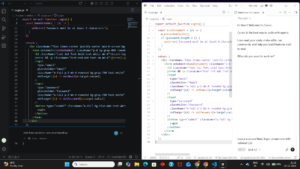
Instead, I gave both tools the exact same prompt: “Create a secure React login component with Tailwind CSS styling, including form validation and error handling for incorrect passwords.”
How GitHub Copilot Performed
I booted up VS Code with the Copilot extension active. As I started writing the React function, it quickly suggested the standard boilerplate.
Copilot is genuinely fantastic at predicting the next line. However, it felt like a smart autocomplete rather than an active coding partner.
I had to manually guide it through the error-handling logic step-by-step. It got the job done, but I was still doing all the heavy lifting in terms of the component’s architecture.
How Cursor AI Performed
Next, I opened Cursor AI. My entire VS Code environment transferred over seamlessly.
Instead of just typing, I used Cursor’s native Cmd+K feature to generate the code block directly from my prompt window.
The difference was night and day. Cursor didn’t just write the basic UI. Because it understood the context of a “secure” component, it automatically implemented state management for the error messages. It structured the Tailwind CSS flawlessly on the first try.
Test 2: Fixing a Broken API Endpoint
Writing new code from scratch is easy for AI. The real test is debugging existing, broken code.
For the second phase of my Cursor AI vs GitHub Copilot experiment, I purposely broke an API endpoint in a Node.js backend. I changed variable names and messed up the asynchronous fetching logic.
GitHub Copilot chat required me to highlight the exact broken code, open the side panel, and ask it what was wrong. It eventually found the syntax error, but it completely missed the fact that the external API data model had changed.
Cursor AI took a radically different approach. Using the Cmd+Enter (Codebase feature), I simply asked, “Why is my login endpoint failing?”
Cursor scanned my entire folder structure. It found the broken endpoint, cross-referenced it with my database schema in another file, and realized the variable mismatch. It then offered a one-click “Apply” button to fix the code across multiple files simultaneously.
Test 3: Privacy, Security, and Codebase Indexing
For B2B applications and enterprise software, privacy is a massive concern.
GitHub Copilot relies heavily on cloud telemetry. While they have enterprise plans with strict data protections, individual developers often worry about their proprietary code being used to train future models. You can review their official policies on the [Official GitHub Copilot website].
Cursor AI offers a specific “Privacy Mode” toggle. When activated, none of your code is stored on their servers or used for training. You can verify their security compliance on the [Official Cursor AI website].
If you are obsessed with privacy—much like when we recently set up a completely private, offline AI environment by [learning how to deploy Llama 3 locally via Open WebUI] —Cursor’s privacy toggle gives you excellent peace of mind.

The Pricing Comparison
If you are a solo developer or running a tech blog, budget matters.
-
GitHub Copilot: Costs around $10 per month for individuals. It is deeply integrated into the GitHub ecosystem.
-
Cursor AI: Offers a generous free tier with limited premium AI requests. The Pro plan costs $20 per month, giving you access to the smartest models like Claude 3.5 Sonnet and GPT-4o.
While Cursor is slightly more expensive, the amount of time it saves during deep refactoring makes the extra ten dollars entirely worth it.
Rajan’s Verdict: Which AI Should You Choose?
After running these extensive tests, my conclusion on the Cursor AI vs GitHub Copilot debate is crystal clear.
If you just want a smart, reliable autocomplete assistant to finish your sentences while you drive the entire architecture, GitHub Copilot remains a solid choice. It is backed by Microsoft and integrates perfectly if your team is already locked into the GitHub ecosystem.
However, if you want a true autonomous coding agent that understands your entire project context, reads multiple files at once, and writes production-ready code with a single command, Cursor AI is the absolute winner.
It shifts your role from being a repetitive “code writer” to a high-level “code reviewer.” In 2027, Cursor is not just an editor; it is a massive unfair advantage for any developer.
Related Posts
Genspark.ai Review 2026: Master The AI Workspace
The search for the absolute best Genspark.ai guide ends here.…

Krea AI Review 2026: Best Real-Time AI Generator
The search for the absolute fastest and most intuitive AI…

Databox Review 2026: Best Ultimate AI Data Analyst
What is Databox Agentic Analytics? In this definitive Databox Review…